Website Development, AI & SEO Agency
London: 116 Cavell Street, E1 2JA · Dhaka: Rd #24, H #10, Rupnagar, Mirpur-1216

WordPress · Pillar guide
The Complete WordPress Guide for Business Owners
By Shaiful Mozumder · Published 16 November 2026
Picture a business owner who takes over the business website from a departing manager. It runs on WordPress, it has 30-odd plugins nobody can explain, the theme stopped receiving updates two years ago, and the only admin login belongs to a freelancer who no longer replies. The site still works, but nobody knows what it would cost to fix, or what happens if it breaks.
That situation is common, and it is avoidable. This guide explains how WordPress works for a business website, what you need to run it, how to keep it secure, fast and accessible, and which decisions to make before you hire anyone. By the end you should be able to judge whether WordPress suits your business, ask a developer the right questions and know what good maintenance looks like. If you are still at the stage of deciding goals, pages and budget, start with our guide on how to plan a business website.
Key takeaways
- WordPress powers 39.5% of all websites and 58.2% of sites with a known content management system, so skills, themes and plugins are widely available.
- Self-hosted WordPress (WordPress.org) gives you full ownership and flexibility; you arrange hosting and maintenance yourself or through a supplier.
- Most WordPress security problems come from plugins and themes rather than WordPress itself: plugins accounted for 91% of new vulnerabilities reported in 2025.
- Every plugin is a maintenance commitment; choose fewer, well-supported ones and remove what you do not use.
- Speed and accessibility are decided mainly by the theme, page builder and plugins, so choose them with both in mind.
- Updates, backups and monitoring are ongoing jobs; budget for them from the start, whether you do them yourself or pay for a care plan.
- Keep the domain, hosting and WordPress admin accounts in your business’s name.
Is WordPress a good choice for a business website?
WordPress is a good choice for most business websites that publish regular content, need to grow over time or must stay fully under the owner’s control. It is a weaker choice when nobody will maintain it, or when a hosted platform already does exactly what the business needs with less upkeep.
Its reach is the main practical advantage. W3Techs reports that WordPress is used by 39.5% of all websites and holds a 58.2% share of the content management system market, as of 30 October 2026 [1]. That scale means a large pool of developers, documentation, themes and plugins, and a lower risk of being locked into one supplier.
| Your situation | WordPress fit | Why |
|---|---|---|
| Service business with regular articles, case studies or landing pages | Strong | Flexible content editing and strong SEO plugins |
| Business that wants full ownership and the freedom to change supplier | Strong | Open-source software you can move between hosts |
| Online store with a large catalogue and complex shipping | Possible, with care | WooCommerce works well, but a hosted store platform may need less upkeep |
| Very small site that will rarely change, with nobody to maintain it | Weak | A hosted website builder handles updates and security for you |
| Custom web application with complex user accounts or workflows | Depends | A custom build may suit better than bending WordPress to fit |
The trade-off: WordPress gives you more control than a hosted website builder, but control comes with responsibility. Someone has to update the software, check the backups and remove plugins that are no longer needed. If no one will do that, the flexibility becomes a risk.
WordPress.com or WordPress.org: which one do you need?
Most businesses mean self-hosted WordPress, the free software from WordPress.org installed on hosting they choose. WordPress.com is a separate hosted service built on the same software, where hosting and much of the maintenance are included.
According to WordPress.com’s own comparison, on WordPress.com managed hosting is built in and updates, backups and SSL are handled automatically, and plugins can be installed on paid plans. With self-hosted WordPress.org, you must find and pay for a hosting provider yourself and you build and maintain the site on your own [3].
| WordPress.com | Self-hosted WordPress.org | |
|---|---|---|
| Hosting | Included | You choose and pay for a host |
| Updates and backups | Handled automatically | Your job, your host’s or your developer’s |
| Plugins | On paid plans | Any plugin, including custom ones |
| Control | Within the platform’s rules | Full control of files and database |
| Best for | Owners who want WordPress with less upkeep | Businesses that want full ownership and flexibility |
The rest of this guide focuses on self-hosted WordPress, because that is what most business websites run on and where most of the decisions sit.
What you need to run a self-hosted WordPress site
You need a domain, a hosting account that meets WordPress’s requirements, and someone responsible for keeping the software up to date. WordPress.org currently recommends PHP 8.3 or greater, MariaDB 10.11 or greater or MySQL 8.0 or greater, and HTTPS support [2].
In practice that means choosing between three kinds of hosting:
- Shared hosting: the cheapest option, where your site shares a server with others. Suitable for many small brochure sites.
- Managed WordPress hosting: the host handles WordPress-specific updates, caching and backups. Costs more but saves time.
- Cloud or VPS hosting: more power and control, but needs technical skill to manage well.
The ongoing costs of each are set out in our website cost breakdown, so this guide does not repeat the figures. What matters here is the match between hosting and who will look after the site: a business without technical help is usually better served by managed hosting than by a cheaper plan it cannot maintain.
Professional tip: Before you buy hosting, check which PHP version the plan runs and whether it includes daily backups you can restore yourself. Those two details tell you more about a host than the headline price.
Themes and page builders: how WordPress sites are built
The theme controls how the site looks and is structured; a page builder, if you use one, controls how individual pages are laid out. Together they decide much of the site’s speed, accessibility and ease of editing.
There are three common approaches:
| Approach | What it means | Strengths | Watch out for |
|---|---|---|---|
| Block editor (Gutenberg) with a block theme | WordPress’s built-in editor and a theme designed for it | No extra plugin; light and future-proof | Fewer ready-made layouts for complex designs |
| Page builder (such as Elementor) on a lightweight theme | Visual drag-and-drop layouts | Fast to design; easy for staff to edit | Extra code on each page; you depend on the builder |
| Custom theme | Built by a developer for your site | Lean code, exactly what you need | Changes need a developer; higher initial cost |
From our own site
web3matrix.com runs on WordPress 7.1 with PHP 8.3 on Hostinger. We used the lightweight Hello Elementor theme with the free edition of the Elementor page builder, and a separate add-on for the site-wide header and footer. That combination let us build about 64 pages quickly and gives non-developers a visual editor, at the cost of depending on one builder for page layouts.
Plugins: add features without adding risk
Plugins add features to WordPress, from contact forms to online stores, but each one is code written by someone else that you now have to keep updated. Choose them as carefully as you would choose a supplier.
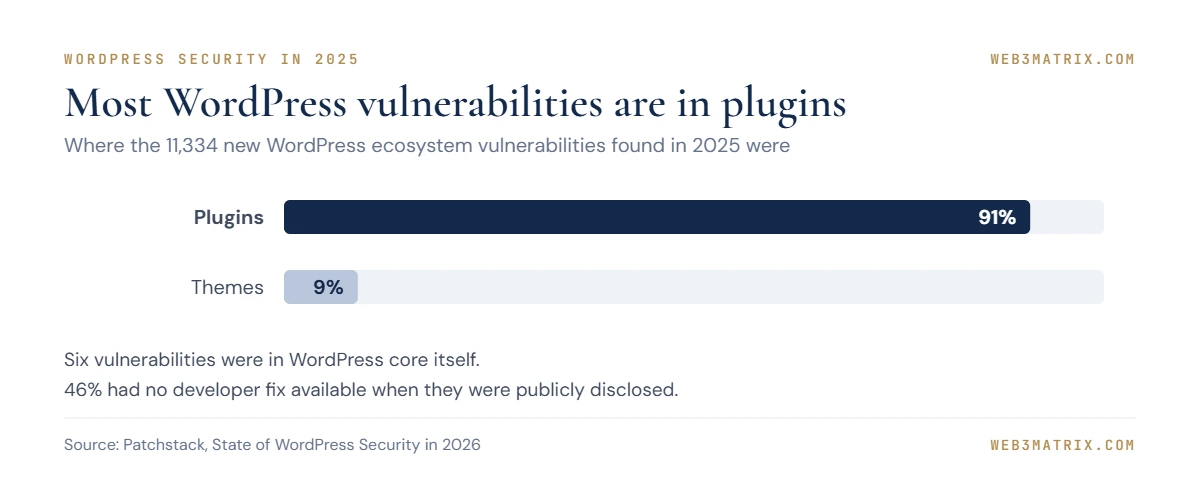
The risk is measurable. Patchstack’s State of WordPress Security in 2026 recorded 11,334 new vulnerabilities in the WordPress ecosystem in 2025, a 42% increase on the previous year. Of those, 91% were in plugins and 9% in themes, with only six reported in WordPress core, all low priority [5].
Before you install any plugin, check:
- When it was last updated, and whether it is tested with your WordPress version.
- How many active installations and reviews it has, and how the developer responds to support requests.
- Whether its licence fits a business site, not just a personal blog.
- Whether you could do the same job with a feature you already have.
- What happens to your site and data if you remove it later.
From our own site
When we chose spam protection for the contact forms on web3matrix.com, we decided against Akismet because its free plan does not cover commercial sites, and set up Cloudflare Turnstile on the Contact Form 7 forms instead. Where we needed small features such as the blog post layout and the share bar, we added short code snippets through WPCode rather than installing another plugin.
Use the planner below to see which types of plugin your site is likely to need and how much ongoing maintenance that adds.
Interactive planner
WordPress plugin planner
Tick the features your site needs to see the plugin types involved and the maintenance they add.
Your plugin plan
Tick at least one feature
Maintenance level is our rule of thumb (up to 5 plugin types: light; 6 to 8: moderate; 9 or more: heavy), not a fixed standard. "We use" shows what runs on web3matrix.com, not a recommendation for every site; check whether your host already provides caching, backups or a firewall before adding plugins.
WordPress security: what business owners need to know
WordPress itself is actively maintained; most break-ins come through out-of-date plugins and themes, weak passwords or missing backups. Security is a routine, not a one-off setup task.
The WordPress Advanced Administration Handbook recommends always keeping WordPress and plugins up to date, using a strong password and two-step authentication, backing up regularly including the database, and disabling the built-in file editor by adding the DISALLOW_FILE_EDIT constant to wp-config.php, because the file editor is often the first tool an attacker uses after logging in [4].
Speed matters too. Patchstack reports that 46% of vulnerabilities in 2025 had no developer fix in time for public disclosure, and that the weighted median time to first exploit for heavily exploited vulnerabilities was five hours [5]. Waiting a month to update is no longer a safe default.
“Security is a process, not a product.”
From our own site
After launching web3matrix.com in October 2026, we added a small security hardening snippet the next day: it sends security headers, disables the built-in theme and plugin file editors, turns off XML-RPC methods we do not use and hides the user list from the public REST API. Author archive pages return a 404, so usernames are not exposed through them. None of this replaces updates and backups; it reduces what an attacker can find.
Professional tip: Give every person who needs admin access their own account with two-step authentication, and remove the account when they leave. Shared logins make it impossible to know who changed what.
Speed and performance on WordPress
WordPress can be fast, but speed depends on hosting, the theme, how many plugins run on each page, image sizes and caching. Google’s Core Web Vitals measure loading performance, interactivity and visual stability from real users [8], so they are a useful target for any WordPress site.
The usual fixes, in order of impact, are good hosting, a caching plugin or server-level cache, correctly sized and compressed images, fewer plugins and lighter page-builder layouts.
From our own site
On web3matrix.com we use LiteSpeed Cache with CSS and JavaScript minification, deferred JavaScript and font display set to swap. We switched off image lazy loading after it broke the before-and-after image slider for visitors who were not logged in. It is a useful reminder that every optimisation setting needs testing as a visitor, not just as an administrator.
Accessibility on WordPress
An accessible WordPress site is one that people with disabilities can use, and the recognised standard is WCAG, with WCAG 2.2 level AA a sensible target for business sites [9]. Accessibility is mostly decided by the theme, page builder and content: colour contrast, headings, link text, form labels and keyboard navigation.
Avoid accessibility overlay widgets that promise one-click compliance. Build accessibility into the theme and content instead, then test with a keyboard and a screen reader.
From our own site
We built web3matrix.com to WCAG 2.2 AA in the code rather than adding an overlay, and published an accessibility statement that describes the site as partially conformant. Being honest about what is left to do is better than claiming full compliance you cannot show.
Updates, backups and ongoing maintenance
A WordPress site needs regular updates to WordPress core, themes and plugins, tested backups, uptime and security monitoring, and occasional clean-ups of unused plugins and accounts. Since WordPress 5.5, administrators can switch on automatic updates theme by theme and plugin by plugin [6].
Automatic updates help, but they are not a maintenance plan. Someone still needs to check that the site works after updates, that backups can actually be restored and that nothing unusual has been installed.
| Frequency | Task |
|---|---|
| Weekly | Apply updates (or check automatic ones), confirm a recent backup exists, check forms still send |
| Monthly | Review plugins and remove unused ones, check admin accounts, run a speed test on key pages |
| Quarterly | Test-restore a backup to a staging copy, review security settings, check accessibility on new pages |
| Yearly | Check PHP version, hosting plan and licence renewals; review whether the theme is still maintained |
Free checklist
WordPress maintenance checklist (PDF, 2 pages)
Weekly, monthly, quarterly and yearly tasks, plus an ownership and access check. Print it and tick tasks as you go.
If you would rather not do this yourself, our website care plans start from $79 (£65) a month and include updates, backups, monitoring and four hours of changes each month.
AI on WordPress: what is changing
WordPress is adding the plumbing for AI tools rather than a single AI feature. WordPress 6.9 introduced the Abilities API, a core system that lets plugins, themes and WordPress itself describe what they can do in a machine-readable format that AI tools and automation can use [10]. These are building blocks for plugin developers, so the AI features you see will mostly arrive through plugins and hosting tools rather than WordPress itself.
For business owners, the practical point is the same as with any plugin: an AI feature that can edit content or settings needs the same scrutiny, permissions and backups as any other tool with admin access.
I run a WordPress website for my business. Here is my list of installed plugins with their last-updated dates: [paste the list from Plugins > Installed Plugins]. For each plugin, tell me what it is usually used for, whether it looks abandoned (not updated in over a year), whether another plugin on the list appears to do the same job, and which ones I should ask my developer about. Do not guess at version numbers or vulnerabilities; flag anything you are unsure of.
Works in ChatGPT, Claude, Gemini or Copilot. Treat the answer as a first draft and check every figure and date before you rely on it.
Who should have access: WordPress user roles
WordPress has built-in user roles, so not everyone needs full admin rights. WordPress.org describes an Administrator as someone with access to all administration features, an Editor as someone who can publish and manage posts including other users’ posts, an Author as someone who can publish and manage their own posts, a Contributor as someone who can write but not publish, and a Subscriber as someone who can only manage their profile [11].
For most business sites, that translates into a simple rule: one or two administrators, editors for the people who manage content, and authors or contributors for staff or freelancers who only write. Fewer administrators means fewer accounts that can install plugins or change settings if a password is stolen.
| Person | Suggested role | Why |
|---|---|---|
| Business owner | Administrator | Controls the site and can remove access |
| Developer or care-plan provider | Administrator, on their own named account | Needs to update and fix the site; easy to remove later |
| Marketing manager | Editor | Manages all content without changing settings or plugins |
| Staff writer or freelance copywriter | Author or Contributor | Writes content; Contributors need approval to publish |
SEO on WordPress
WordPress handles the technical basics of search out of the box, and SEO plugins fill in the rest. Since WordPress 5.5, WordPress exposes an XML sitemap index at /wp-sitemap.xml by default, covering public post types and taxonomies [12].
An SEO plugin typically adds control over page titles and meta descriptions, better sitemaps, redirects and structured data. Install one, not several: overlapping SEO plugins can output duplicate tags and conflicting schema.
From our own site
We use Rank Math as the single SEO plugin on web3matrix.com, and we write structured data for blog posts ourselves so we know exactly what each page outputs and nothing is declared twice.
Online stores: WooCommerce on WordPress
WooCommerce turns a WordPress site into an online store, with products, a basket, checkout and payment integrations. It is open source, the core plugin is free, and it lists more than 7 million active installations in the WordPress plugin directory, with paid extensions and support available on top [13]. Current versions require WordPress 7.0 or later [13], so an out-of-date WordPress site may need updating before a shop can be added.
Free software does not mean a free store. These are the costs a WooCommerce shop adds:
| Cost | What it covers |
|---|---|
| Hosting | A store needs more server resources than a brochure site, especially at busy times |
| Paid extensions | Subscriptions, bookings, advanced shipping or extra payment options are often paid add-ons |
| Payment fees | Charged by your payment provider on every transaction |
| Maintenance | Updates and testing for WordPress, WooCommerce and every extension, plus checkout checks after each update |
WooCommerce suits businesses that want their shop and content on one site they fully control. The trade-off is maintenance: a store adds payment, tax, stock and security responsibilities, and every extension adds code to update. For a large catalogue, or a business that wants the platform to handle hosting and security, a hosted store platform can mean less upkeep.
Professional tip: After every WooCommerce or payment plugin update, place a real low-value test order and refund it. A checkout that fails silently costs more than any plugin licence.
Our WooCommerce development page covers what a store build involves, and our upcoming guide to building an online store compares the options in depth.
A WordPress roadmap for business owners
The workflow below shows the order of decisions and jobs for a business WordPress site, from choosing the platform to ongoing care.
Text version of this workflow
- Start: new or inherited site — List what the site must do
- Does WordPress fit?
- Choose .org or .com — Self-hosted for full control; Hosted for less upkeep
- Domain and hosting — In your business's name; PHP 8.3+, HTTPS, backups
- Theme and editing — Block editor, page builder or custom theme
- Only needed plugins — Check updates, support, licence
- Content and SEO — Accessible pages; One SEO plugin
- Harden security — Named accounts with 2FA; File editing off, backups on
- Test and launch — Speed, forms, accessibility; Submit sitemap
- Ongoing care — Weekly updates and backups; Monthly plugin review
- Confirm that WordPress fits your content, ownership and maintenance needs.
- Choose self-hosted WordPress.org or WordPress.com.
- Register the domain and choose hosting that meets WordPress’s requirements, in your business’s name.
- Choose the theme and editing approach: block editor, page builder or custom theme.
- Install only the plugins you need, checking support, updates and licences.
- Build the pages and content, with accessibility in mind from the first design.
- Harden security: strong passwords, two-step authentication, file editing disabled, backups configured.
- Test speed, forms, accessibility and backups before launch.
- Launch and submit your sitemap to Google Search Console.
- Run weekly, monthly, quarterly and yearly maintenance, and review plugins regularly.
Questions to ask your WordPress developer
- Will the domain, hosting and WordPress admin accounts be in my business’s name?
- Which theme and page builder will you use, and why are they right for this site?
- Which plugins will you install, which need paid licences, and what do the renewals cost?
- How will updates be handled after launch, and who checks the site afterwards?
- Where are backups stored, how often are they taken and have you tested restoring one?
- What security measures will you set up at launch?
- How will you test speed and accessibility before launch?
- How will my team edit pages without breaking the design?
- What documentation will I receive when the project ends?
WordPress mistakes business owners make (and how to fix them)
Installing a plugin for every small feature. Each plugin adds code to update and a potential vulnerability. Fix: review the plugin list every month and remove anything unused or replaceable.
Letting the developer own the accounts. If the hosting or domain is in someone else’s name, you depend on them to move or recover the site. Fix: hold the main accounts yourself and give suppliers their own logins.
Treating launch as the end of the project. WordPress needs updates from the first week. Fix: agree who maintains the site before launch, and budget for it.
Never testing a backup. A backup you have not restored may not work. Fix: test-restore a backup to a staging copy at least once a quarter.
Choosing a heavy theme for its demo. Feature-packed themes often load code your site does not use. Fix: choose a lightweight theme and add only what the design needs.
Topics this guide covers in more depth
Each part of this guide has its own detailed article in this series:
- Is WordPress still the right choice for a business website? A decision guide comparing WordPress with the main alternatives.
- How to choose a WordPress theme without slowing your site down.
- Essential WordPress plugins for business websites, and which to avoid.
- Elementor, Gutenberg or a custom theme: page builders compared.
- Choosing WordPress hosting: shared, managed or cloud.
- WordPress maintenance checklist: weekly, monthly and yearly tasks.
- How to secure a WordPress website: a business owner’s checklist.
- How to speed up a WordPress site.
- How to update WordPress core, themes and plugins safely.
- WordPress backups: how to set them up and restore a site.
- WordPress site hacked? First steps to recover.
- Migrating to WordPress from Wix, Squarespace or an old CMS.
Frequently asked questions
How much does a WordPress business cost?
The WordPress software is free, but a business site still has costs: a domain, hosting, any premium themes or plugins, the build itself and ongoing maintenance. The build is the largest one-off cost and maintenance the main recurring one. Our website cost breakdown sets out typical ranges for each line.
What is the downside of WordPress?
The main downside is maintenance. Because you control the software, you or your supplier must keep WordPress, themes and plugins updated, manage backups and watch security, and most WordPress vulnerabilities are found in plugins rather than WordPress itself. Sites with too many plugins can also become slow and harder to manage.
Is WordPress free?
The WordPress software from WordPress.org is free and open source. You still pay for a domain and hosting, and often for premium themes, plugins and professional help. WordPress.com, the hosted service, has free and paid plans.
How often should I update WordPress?
Check for updates at least weekly and apply security updates as soon as they are released. Patchstack reports a weighted median of five hours to first exploit for heavily exploited vulnerabilities in 2025, so delaying security updates carries real risk.
Do I need a developer to run a WordPress site?
Not for everyday editing: staff can update pages and posts through the editor. A developer or care plan helps with set-up, updates that need testing, troubleshooting, security and changes to the design or features.
Can I move my WordPress site to another host?
Yes. Self-hosted WordPress can be moved between hosts because you own the files and database. Plan the move with a full backup, check the PHP version on the new host and test the site before changing the domain’s settings.
Running WordPress well
WordPress works best for businesses that treat it as an ongoing asset rather than a one-off project. Choose the hosting, theme and plugins with maintenance in mind, keep the key accounts in your own name, and decide before launch who will update, back up and monitor the site.
If you are still planning the wider project, the business website planning guide covers goals, budget and timeline. If you would like to see a WordPress design for your business before you commit, Web3matrix will build a free demo homepage around your brand.
Written by Shaiful Mozumder, Founder, Senior Web Developer and SEO at Web3matrix, building websites for businesses since 2010.
Sources
- W3Techs — Usage statistics and market share of WordPress
- WordPress.org — Requirements
- WordPress.com — WordPress.com vs. WordPress.org: What’s the difference?
- WordPress Developer Resources — Hardening WordPress (Advanced Administration Handbook)
- Patchstack — State of WordPress Security in 2026
- WordPress.org — Plugin and themes auto-updates
- Bruce Schneier — The Process of Security (April 2000)
- web.dev — Web Vitals
- W3C Web Accessibility Initiative — WCAG 2 Overview
- Make WordPress Core — Abilities API in WordPress 6.9
- WordPress.org — Roles and Capabilities
- Make WordPress Core — New XML Sitemaps Functionality in WordPress 5.5
- WordPress.org Plugin Directory — WooCommerce
No related posts.