Website Development, AI & SEO Agency
London: 116 Cavell Street, E1 2JA · Dhaka: Rd #24, H #10, Rupnagar, Mirpur-1216

WordPress · How-to guide
How to Choose a WordPress Theme Without Slowing Your Site Down
By Shaiful Mozumder · Published 20 November 2026
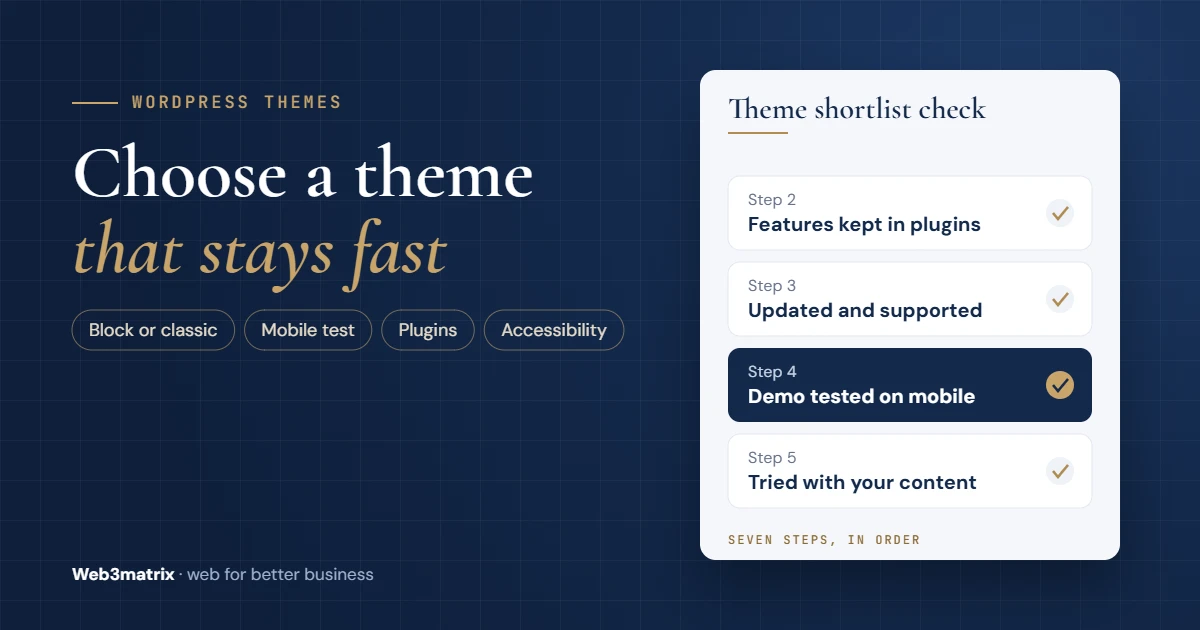
Picture a business owner choosing a theme for a new WordPress site. One multipurpose theme has a demo that looks exactly right, so they install it and import the demo content. Along with it come a slider plugin, a page builder, a set of custom shortcodes and dozens of demo pages. On a phone, the homepage now takes several seconds to settle, and nobody can say which part is slowing it down.
To choose a WordPress theme without slowing your site down, decide how you will edit the site first. Then shortlist well-maintained themes that leave features to plugins, and test your favourite on a phone with your own content before you commit. A demo screenshot tells you very little about real-world speed. This guide sets out a seven-step process you can follow. For the wider picture, see our complete WordPress guide for business owners.
Key takeaways
- Your theme and page builder shape how much code every page loads, so they affect speed more than WordPress itself does.
- Choose between a block theme and a classic theme based on how you want to edit the site, not on the demo.
- Prefer themes that handle design only; features such as sliders, forms and portfolios belong in plugins you can keep if you change theme.
- Test a shortlisted theme with your own content, on mobile, against the Core Web Vitals thresholds before you commit.
- Changing theme later does not delete your posts and pages, but theme-specific layouts and shortcodes do not carry over.
How do you choose a WordPress theme?
Work through seven steps in order: decide how you will edit the site, list the features you need, shortlist maintained themes, test the demo on mobile, try the theme with your own content, check accessibility and code quality, then commit and protect your changes with a child theme. The steps are set out in full later in this guide.
The order matters because most theme problems start with choosing on looks. A theme that matches a demo screenshot can still bring heavy code, features you will never use and design options that tie you to it for years.
If you would rather have the theme chosen and set up for you, our WordPress development service covers theme selection, set-up and speed testing as part of the build.
What are the two types of WordPress themes?
The two types are block themes and classic themes. The WordPress Theme Handbook calls this split the most important distinction between themes [3].
| Block themes | Classic themes | |
|---|---|---|
| How templates are built | HTML templates made of blocks [3] | PHP template files [3] |
| How you edit the design | Site Editor and Styles, with global settings in theme.json [3] | Customizer and theme options [3] |
| Standards | Follows a defined structure | Far fewer standards to follow [3] |
| Best fit | Owners who want to edit layouts themselves in WordPress | Sites built with a page builder or a developer-built custom theme |
The Handbook describes block themes as the modern method of building WordPress themes, while classic themes are still supported [3]. Some classic themes adopt block features such as global styles; these are often called hybrid themes, although that is not an official type [3].
Neither type is automatically faster. What matters is how much code the theme and any page builder add to each page.
Why your theme affects your site's speed
Every page a visitor opens loads the theme’s styles, scripts and templates, plus anything a page builder adds. The HTTP Archive’s 2025 Web Almanac found that WordPress remains among the lowest-ranked content management systems for Core Web Vitals, with 45% of WordPress sites passing on mobile [1]. The same chapter estimates that around 60% of WordPress sites use a page builder, and notes that page builders often generate more complex page structures and larger CSS and JavaScript files [1].
“WordPress performance variance is driven more by configuration than by core limitations.”
In other words, the choices made when a site is built, including the theme, the page builder and the plugins, decide most of its speed.
Google’s Core Web Vitals give you a clear target to test against. A page is considered good when it meets these thresholds for at least 75% of page loads [2]:
| Metric | What it measures | Good threshold |
|---|---|---|
| Largest Contentful Paint (LCP) | How quickly the main content appears | 2.5 seconds or less [2] |
| Interaction to Next Paint (INP) | How quickly the page responds to taps and clicks | 200 milliseconds or less [2] |
| Cumulative Layout Shift (CLS) | How much the layout moves while loading | 0.1 or less [2] |
From our own site
web3matrix.com runs on Hello Elementor, a theme described in the WordPress theme directory as lightweight and minimalist [7]. Even so, when we tested our first blog post on mobile with PageSpeed Insights in November 2026, its layout shift measured 0.27, well above the 0.1 target. The cause was not the theme’s code but the way the featured image moved as the web fonts loaded. A lightweight theme is a good start, not a guarantee; you still have to test the whole design.
The step-by-step way to choose a theme
The workflow below shows the full process. Each step is explained underneath.
Text version of this workflow
- Start: new site or redesign — Know your pages and goals
- Decide how you will edit — Block editor, page builder or developer
- Keep features in plugins — Forms, bookings, sliders; Not built into the theme
- Shortlist maintained themes — Recent updates, changelog; Answered support forum
- Test the demo on mobile — PageSpeed Insights; LCP, INP and CLS targets
- Try it with your content — Live Preview or a test site; Your heaviest real page
- Check accessibility — Keyboard-only navigation; Visible focus
- 7. Commit with a child theme — Back up before switching; Keep custom changes safe
1. Decide how you will edit the site
Choose your editing approach before you look at themes. If you want to change layouts yourself inside WordPress, start with block themes. If your developer builds pages with a page builder such as Elementor, choose a lightweight theme designed to work with that builder. If a developer will build a custom theme, the theme choice becomes part of their brief.
2. List the features you need, then keep them out of the theme
Write down what the site must do: contact forms, bookings, a portfolio, a shop. Then plan to deliver those features with plugins, not with the theme. The WordPress.org theme directory requires listed themes to stay focused on design, and not to add things such as custom post types, blocks or shortcodes [6]. That rule exists for a reason: features built into a theme disappear when you change it.
Professional tip: If a theme’s sales page lists more features than design options, treat that as a warning. Every built-in feature is code you load on every page and something you lose if you switch theme later.
3. Shortlist themes that are maintained
Look for themes listed in the WordPress.org directory or sold by an established developer with a public changelog. Themes in the directory must meet published requirements on licensing, security, privacy and accessibility, such as escaping output, keeping tracking off by default and providing visible keyboard focus [6]. Check when each theme was last updated and how its support forum is answered.
4. Test the demo on mobile
Run the theme’s demo page through PageSpeed Insights on the mobile setting and compare the results with the thresholds above. A demo is the best case: it is usually hosted on fast servers with no extra plugins. If the demo already struggles on mobile, your site will not do better.
5. Try the theme with your own content
Use Live Preview in the WordPress dashboard to see a theme with your own content before you activate it, or set up a test site to evaluate it properly [5]. If the preview is blank, WordPress’s own guidance is not to activate the theme without investigating further [5]. Test your heaviest real page, such as a long service page with images, rather than the homepage alone.
6. Check accessibility and code quality
Use the keyboard alone to move through menus and forms, and check that focus is always visible. Themes in the directory can carry an accessibility-ready tag after a manual review by the accessibility team, which the team describes as a minimum standard rather than full WCAG AA conformance [8]. Treat the tag as a useful filter, then test the finished site yourself.
7. Commit, and protect your changes with a child theme
Once you have chosen, put any custom styles or template changes in a child theme rather than editing the theme directly [5]. That way your changes survive when the parent theme is updated.
Professional tip: Before you activate a new theme on a live site, take a full backup and note which menus and widgets are assigned where. It turns a stressful switch into a quick tidy-up.
Check your shortlisted theme
Tick the statements that are true for the theme you are considering. The checklist gives a quick read on whether it is a safe choice for a business site.
Interactive checklist
WordPress theme shortlist check
Tick what is true for the theme you are considering. The result updates as you go.
Your result
Tick the statements above
Each statement is weighted; testing on mobile counts the most.
A quick editorial guide based on the checks in this article, not a speed test. Always measure the finished site.
Red flags when choosing a WordPress theme
These warning signs are common in themes that look impressive in a demo but cause problems later.
| Red flag | Why it matters | What to do |
|---|---|---|
| Bundles several plugins (sliders, builders, form tools) | More code on every page and more software to update | Prefer a theme that recommends plugins you install yourself |
| Relies on theme-specific shortcodes | Layouts built with them break when you change theme [4] | Use blocks or your page builder’s own elements instead |
| A demo importer that adds dozens of pages | Leaves unused content, images and settings behind | Import only what you need, or build the pages yourself |
| No updates for a year or more | Security fixes and WordPress compatibility may lag | Choose a theme with a recent update and public changelog |
| Heavy animation and sliders throughout the demo | Often hurts loading speed and layout stability on mobile | Test the demo on mobile before you buy |
| Poor keyboard navigation | Excludes some visitors and suggests weak code quality | Test menus and forms with the keyboard alone |
Will changing your WordPress theme break your site?
No, your content stays. Learn WordPress states that the main content of your posts and pages will not change or be deleted when you change themes [4]. What can change is everything the old theme controlled: custom layouts, theme-specific shortcodes, widget placement, menu locations and Customizer settings may all need redoing [4].
This is why choosing well matters. The more your site depends on features that belong to one theme, the more work a future change becomes. A theme that handles design only, with features delivered by plugins, keeps that work small.
How AI can help you test a theme
AI is starting to help with speed testing, not just content. Chrome DevTools now includes AI assistance powered by Gemini that can explain performance insights and record a performance trace for you; Google labels the feature as experimental [9]. It is a useful way to understand why a demo or a test page is slow, as long as you check its suggestions against the measured results.
You can also use a general AI assistant to sort through a theme’s features before you install it.
I am choosing a WordPress theme for my business website. How we will edit the site: [block editor / page builder such as Elementor / a developer]. Features the site needs: [list]. Here is the theme's feature list and changelog: [paste from the theme page]. Tell me which features the theme builds in that would be better handled by plugins, whether it relies on its own shortcodes or bundled plugins, how often it appears to be updated, and what I should test on mobile before choosing it. Do not guess speed scores or statistics; tell me what to measure instead.
Works in ChatGPT, Claude, Gemini or Copilot. Treat the answer as a first draft and check every figure and date before you rely on it.
Frequently asked questions
How do I pick a WordPress theme?
Decide how you will edit the site first, then shortlist maintained themes that handle design rather than features. Test the strongest candidate on mobile with PageSpeed Insights and preview it with your own content before you commit. Choosing on the demo’s looks alone is the most common mistake.
Which WordPress theme is the fastest?
No single theme is fastest for every site, because speed depends on the theme, the page builder, the plugins and the hosting together. Lightweight themes that load little code by default are a good starting point. The only reliable answer is to test your shortlisted themes with your own content against the Core Web Vitals thresholds.
Will I lose my content if I change WordPress themes?
No. Your posts and pages stay in WordPress when you change themes [4]. Theme-specific layouts, shortcodes, widget positions and menu locations may need to be set up again, so take a backup and review the main pages after switching.
Is a free WordPress theme good enough for a business website?
Often, yes. Many free themes in the WordPress.org directory are well maintained and must meet the directory’s requirements on code, privacy and accessibility [6]. A premium theme can add support and design options, but price says nothing about speed; test either kind the same way.
Choosing a theme you will not need to replace
The right WordPress theme is one you rarely think about: it loads little code, leaves features to plugins and lets you edit the site the way you planned. Pick the editing approach first, test the theme on mobile with your own content, and keep custom changes in a child theme. If you are still deciding whether WordPress itself is the right platform, our guide on whether WordPress is still the right choice for a business website covers that decision.
If you would like to see a theme set up properly before you commit, Web3matrix can build a free demo homepage for your business.
Written by Shaiful Mozumder, Founder, Senior Web Developer and SEO at Web3matrix, building websites for businesses since 2010.
Sources
- HTTP Archive — Web Almanac 2025: CMS
- web.dev — Web Vitals
- WordPress Developer Resources — Theme Handbook: What is a theme?
- Learn WordPress — Theme Troubleshooting
- WordPress.org — Work with themes
- Make WordPress Themes — Required
- WordPress.org Themes — Hello Elementor
- Make WordPress Themes — Accessibility
- Chrome for Developers — AI assistance for performance